NFC Guides
How to Program an NFC Tag (UAE Guide)
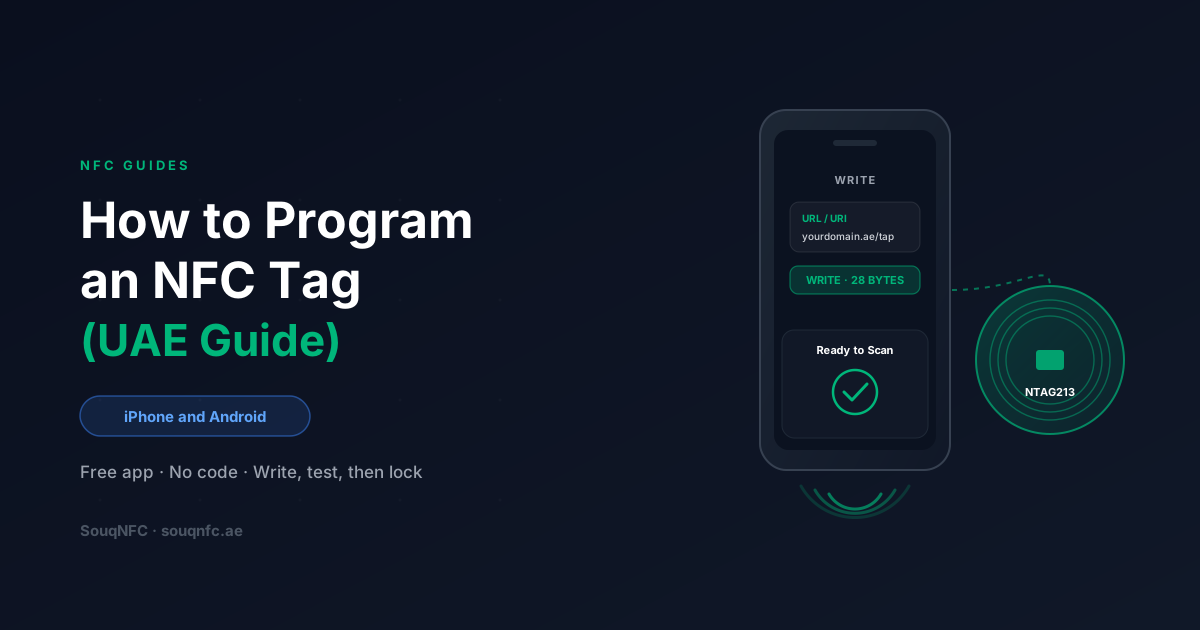
Programming an NFC tag sounds like a job for a developer. It is not. If you can copy a link into a phone, you can program a tag, and the whole process takes less time than making a coffee. There is no code, no special hardware, and no account to create.
What does take some thought is everything around the tap: which chip to buy, what to write onto it, whether iPhones and Android phones will both react to it, and whether to lock it before you stick it on a counter in a busy shop. Those are the decisions that separate a tag that works for years from one that gets rewritten by a stranger in its first week.
This guide covers both. The steps for iPhone and Android, what you can and cannot write to a tag, how to protect it, how businesses in the UAE handle larger quantities, and what to check when a tag refuses to write.
What does “programming” an NFC tag actually mean?
It means writing a small piece of data, usually a web link, onto the chip inside the tag. The phone does the writing over the same radio connection it uses to read. Nothing is installed on the tag and nothing runs on it.
NFC tags are passive. Each one is a tiny chip connected to a coil antenna, with no battery. When a phone comes within a few centimetres, its NFC field powers the chip for long enough to read or write a few hundred bytes. Take the phone away and the tag goes dormant again, holding whatever was written to it until someone writes something else.
The data is stored in a standard format called NDEF (NFC Data Exchange Format). An NDEF message contains one or more records, and each record has a type: a URL, a phone number, a block of text, a contact card, and so on. When a phone reads the tag, it looks at the record type and decides what to do: open the browser, offer to call, offer to save a contact. Programming a tag is simply choosing that record and its contents. If you want the underlying radio and chip detail, the complete guide to how NFC works covers it.
What do you need before you start?
Three things: a blank tag with a compatible chip, a phone that can write NFC, and a free writing app. Most people already have two of the three.
1. The right tag
Buy tags with an NXP NTAG213, NTAG215, or NTAG216 chip. These are the standard for business use because every NFC phone on the market can read and write them, iPhones included. The difference between them is memory: 144, 504, and 888 bytes respectively. A URL fits comfortably on an NTAG213, so unless you plan to store a full contact card on the tag itself, the smallest chip is the right one.
Avoid MIFARE Classic tags for anything customer-facing. They are common in older access systems and cheap bulk listings, but iPhones cannot read them and many Android phones cannot either. The guide to NFC chip types and data limits compares the chips side by side.
Form factor matters less than chip, but choose it with the surface in mind. NFC stickers suit flat surfaces like counters, menus, and product packaging. NFC keychain tags suit anything that gets carried. If the tag will sit on a metal surface, such as a fridge, a steel counter, or a machine, you need an on-metal tag with a ferrite backing layer. A standard sticker placed directly on metal will usually refuse to read or write at all.
2. A phone that can write
Reading and writing are not the same capability, and the phone requirements differ slightly:
- ·iPhone. Any iPhone from the iPhone 7 onward running iOS 13 or later can write tags through an app. iPhone XS and newer models also read tags in the background with no app open, which is what your customers will rely on.
- ·Android. Practically every mid-range and flagship Android phone sold in the UAE has NFC, because it is the same hardware used for Google Pay and Samsung Pay. Check it is switched on: on most phones this is under Settings, then Connected devices or Connections, then NFC.
3. A writing app
Two free apps cover nearly every need, and both are available on the App Store and Google Play. NFC Tools is the most popular general-purpose option, with a clear interface and support for every common record type. NXP TagWriter is made by the company that designs the NTAG chips and is particularly good for password protection and checking exactly what chip you are holding. Either works. Pick one and learn it.
How to program an NFC tag, step by step
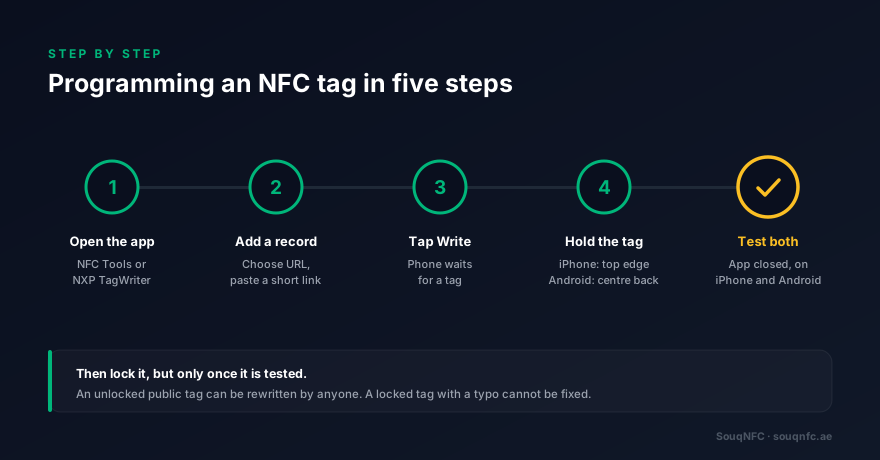
Open the app, add a record, tap Write, hold the tag to the phone, then test it with a different phone. The steps are almost identical on iPhone and Android. The main difference is where you hold the tag.
On an iPhone (using NFC Tools)
- 1.Open NFC Tools and tap Write.
- 2.Tap Add a record, then choose URL / URI.
- 3.Type or paste the full link, including https://, and tap OK.
- 4.Tap Write. A system sheet appears saying the phone is ready to scan.
- 5.Hold the tag flat against the top edge of the iPhone, near the camera, and keep it still until you see the confirmation tick.
On an Android phone
- 1.Confirm NFC is switched on in settings.
- 2.Open NFC Tools, go to the Write tab, and tap Add a record.
- 3.Choose URL / URI, enter the link, and tap OK.
- 4.Tap Write. The app waits for a tag.
- 5.Hold the tag against the centre of the back of the phone. On some models the antenna sits higher, near the camera, so move it slowly if nothing happens.
Then test it, properly
Close the app first. If the writing app is open, it will intercept the tap and show you the tag contents rather than behaving the way a customer's phone would. Then tap the tag with an unlocked iPhone and an Android phone, ideally ones that did not write it. Check that the notification appears, that the right page opens, and that it loads quickly on mobile data rather than your office WiFi. Testing on both platforms is the step people skip, and it is the one that catches most problems.
What can you write to an NFC tag?
Links, phone numbers, email and SMS shortcuts, contact cards, WiFi logins, and plain text. But iPhones only act natively on some of them, so for a public tag that anyone might tap, a URL is almost always the right answer.
The apps list a long menu of record types, and it is tempting to pick the one that matches your goal directly: a contact record for a business card, a WiFi record for guests. The catch is that Android and iPhone do not handle every record type the same way.
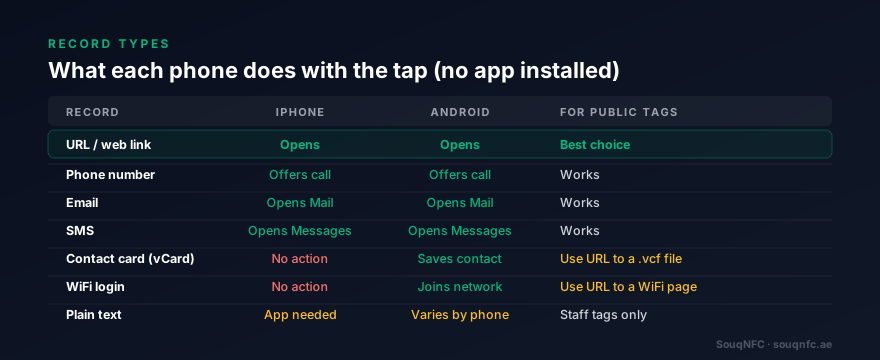
URL, phone, email, and SMS records work on both platforms without any app. A contact card record works on Android but an iPhone will not save it from the tag. A WiFi record joins the network on Android but does nothing on an iPhone. Plain text needs an app to display on iPhone.
The practical workaround is the same in every case: write a URL, and make the page at the other end do the job. A link to a downloadable contact file saves the contact on both platforms. A short page with the network name and password serves every guest. That is how NFC business cards and NFC WiFi cards designed for mixed audiences are set up, and it is the setup we recommend for anything a customer will tap.
Text records do have one UAE-specific use worth knowing: NDEF text is stored as UTF-8, so Arabic works fine. For staff-facing tags, such as equipment labels or stock locations read with an app, a bilingual text record is a simple, offline option.
The decision that saves you a reprint: what URL to write
Write a short link that you control and can redirect, not the final destination. Then you can change where the tag goes at any time without touching the tag.
If you write your Google review link or a menu PDF address straight onto a tag, the tag is tied to that address forever. Change your menu system, move to a new booking platform, rebrand your website, and every tag in the building points at a dead page. If the tags are locked, which public tags should be, you are buying new ones.
The fix is to write a link on your own domain, something like yourdomain.ae/tap/table, and set that address to redirect to wherever the tag should currently go. The tag never changes. The redirect does. This also gives you a count of how many times each tag is tapped, which is useful for seeing which table, counter, or branch is actually being used.
Keep the link short. An NTAG213 holds a URL of roughly 130 characters, and Google review links and tracked marketing URLs regularly exceed that. A short redirect fits on the smallest chip with room to spare, which matters if you are buying hundreds of tags. It is also exactly how Google review NFC cards should be configured: the card points at a link you own, and the link points at your review form.
Should you lock the tag?
Yes, for any tag in a public place. An unlocked tag can be rewritten by anyone with a phone and a free app, in about three seconds. You can either lock it permanently or protect it with a write password.
This is not a theoretical risk. A tag on a restaurant table or a shop counter that has not been protected can be rewritten by a bored teenager or redirected by someone with worse intentions, and you will not notice until a customer mentions it. There are two ways to prevent it:
- 1.Permanent lock. In NFC Tools this is under Other, then Lock tag. It makes the tag read-only forever. It cannot be reversed by you, the supplier, or anyone else. This is the right choice when the tag holds a redirect link you control, because you will never need to change the tag itself.
- 2.Password protection. NTAG21x chips support a 32-bit write password. With a password set, anyone can still read the tag but only someone with the password can rewrite it. Use this if you expect to change the tag contents and do not want to rely on a redirect.
Whichever you choose, test the tag fully before protecting it. A locked tag with a typo in the URL is a piece of plastic.
Programming tags in bulk
A phone is fine for a few dozen tags. Beyond that, either use a USB desktop writer or have the supplier encode the tags before they are delivered.
Writing tags one by one on a phone takes around ten to fifteen seconds each once you are in a rhythm, including the lock step. That is manageable for a single restaurant or a small retail fit-out. It is not manageable for a hotel group, a property developer, or an event with a few thousand wristbands.
A desktop USB writer connected to a laptop speeds this up and makes it less error-prone, since you can prepare the content once and write tag after tag. Some apps can also write a sequence of numbered URLs, so each tag gets its own trackable link.
For larger volumes, the efficient route is to have it done at production. Suppliers encode, lock, and verify each tag before shipping, and can print a matching number or QR code on each one so you know which tag went where. When you place bulk NFC orders with SouqNFC, encoding is part of the order, so the tags arrive ready to stick down across your sites in Dubai, Abu Dhabi, or anywhere else in the UAE.
Troubleshooting: why will my tag not write?
Nine times out of ten, it is the position of the tag, a locked tag, an incompatible chip, or metal behind the tag. Work through them in that order.
- ·Nothing happens at all. Move the tag slowly around the antenna area and hold it still. On iPhone that is the top edge. On Android it is usually the centre of the back. Remove a thick or metal-backed phone case, including cases with a magnetic wallet or ring holder.
- ·“Tag is read-only” or write fails. The tag has been locked, either by you, by a previous owner, or at the factory. A locked tag cannot be unlocked. Read it with the app to see what it holds.
- ·“Tag not supported” on iPhone. The chip is almost certainly MIFARE Classic. It will never work with an iPhone. Replace it with an NTAG tag.
- ·“Not enough space.” The record is larger than the chip memory. Shorten the URL with a redirect, or use a tag with an NTAG215 or NTAG216 chip.
- ·Works off the surface, fails when stuck down. There is metal behind it: a steel counter, a metal sign backing, a fridge door. Use an on-metal tag instead.
- ·Writes fine but some phones do not react. Check the record type against the compatibility table above. A contact or WiFi record that works on your Android phone will do nothing on a customer's iPhone.
One UAE-specific note: outdoor tags and tags near windows can face surface temperatures well above what standard paper-faced sticker adhesives are rated for during the summer months. The chip itself is rarely the weak point. The adhesive is. For outdoor or sun-exposed placements, ask for an epoxy or PET tag with an industrial adhesive, or one designed to be screwed or riveted in place. The comparison of NFC and RFID is also worth reading if your project involves tracking assets over longer distances, since that is a job NFC tags are not designed for.
Frequently Asked Questions
Can I program an NFC tag with an iPhone?
Yes. Any iPhone from the iPhone 7 onward running iOS 13 or later can write NFC tags using a third-party app such as NFC Tools or NXP TagWriter. The iPhone has no built-in writing feature, so the app is required for writing, although no app is needed to read a tag once it is programmed.
Do I need special equipment to program NFC tags?
No. A smartphone and a free app are enough for writing tags one at a time. A USB desktop NFC writer only becomes useful when you are encoding hundreds of tags, and for volumes above that most businesses have the supplier encode the tags before delivery.
Can an NFC tag be reprogrammed?
Yes, as long as it has not been locked. A standard NTAG tag can be rewritten many thousands of times. Once a tag is permanently locked it becomes read-only and cannot be changed again, which is why you should only lock a tag after the content is final.
How much data can an NFC tag hold?
An NTAG213 holds 144 bytes of usable memory, enough for a URL of roughly 130 characters. An NTAG215 holds 504 bytes and an NTAG216 holds 888 bytes, which is enough for a small contact card. For anything larger, store it on a web page and write the link to the tag instead.
Why will my NFC tag not write?
The most common causes are that the tag is already locked, the tag is a MIFARE Classic chip that the phone cannot write, the record is too large for the chip memory, the tag is stuck directly on metal, or the tag is not touching the NFC antenna area of the phone. A thick phone case can also block the connection.
Does a programmed NFC tag need power or internet?
The tag itself needs neither. It has no battery and draws power from the phone during the tap. Whether the result needs internet depends on what you wrote: a URL needs a data connection to load the page, while a phone number, text, or WiFi record works offline.
Can I program a WiFi login onto an NFC tag?
Yes, but it only joins the network automatically on Android. iPhones do not act on WiFi records from a tag. For guests on both platforms, point the tag at a short page showing the network name and password, or use a dedicated NFC WiFi card set up for mixed audiences.
Rather skip the programming?
SouqNFC delivers NFC tags encoded and ready to use
NTAG stickers, keychains, cards, and on-metal tags, programmed with your link, locked, and tested before delivery across the UAE. Blank tags available too if you prefer to write your own.
Get a quote